Scratch is the world’s largest coding community for children and a coding language with a simple visual interface that allows young people to create digital stories, games, and animations. Scratch is designed, developed, and moderated by the Scratch Foundation, a nonprofit organization.
Scratch promotes computational thinking and problem solving skills; creative teaching and learning; self-expression and collaboration; and equity in computing.

Step 1: Make Puffy Inflate
-
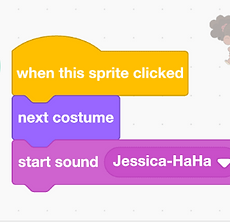
Use the yellow block: when this sprite clicked
-
Add the purple block: set size to 100% (to reset Puffy’s size)
-
Add an orange repeat 10 block
-
Inside the repeat block, place change size by 10
-
✅ Now click Puffy to watch him puff up like a real pufferfish!


Training Week 1
Training Week 2 - Part 1

🖼️ Step 1: Create the Background (Backdrop)
-
Click on the Stage and select the Backdrops tab.
-
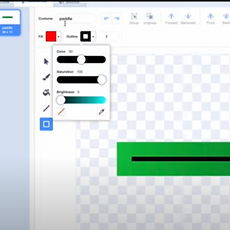
Choose the Rectangle tool and draw a full-screen rectangle in the center.
-
Set the Fill color to:
-
Color: 240 (Blue)
-
Saturation: 100
-
Brightness: 100
-
Deselect the Outline or set it to 0.





Training Week 2 - Part 2

🧮 Step 1: Create Score Variables
-
Go to the Variables tab.
-
Click “Make a Variable” and name it Player1 Score
-
Click again and name another one Player2 Score


Training Week 3

Let’s Make Your Scratch Character Come to Life!
Welcome to a new Scratch coding adventure! In this project, kids will make their Scratch characters talk, laugh, grow, jump, glide, and even switch scenes using colorful code blocks and fun sound effects. Perfect for early learners!
What You'll Need:
-
A Scratch account
-
A laptop or tablet
-
Open this tutorial page: https://scratch.mit.edu



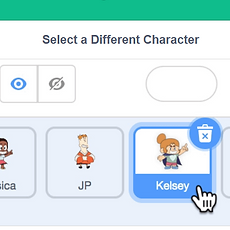


A Bright New Day
-
-
Code Instruction File Here: Click Here
-
Storyline
-
The green flag is clicked, and your character wakes up excited.
They shout out happily:
"Hi, I’m ready!"
-
🎭 Scene 1-2: Getting Ready
Your character starts bouncing with excitement.
Their costumes flip through fast — smiling, jumping, twisting!
They just can’t wait for the big adventure ahead. -
🎯 Scene 3: The Big Jump
Suddenly, your character hears a signal – "Go time!"
They leap into the air with a giant BOING! sound.
As they fly up, their costumes quickly change to show action – spinning, flipping, and zooming higher! -
🪵 Scene 4: Oops, a Wall!
But wait — your character crashes into something!
With a loud THUMP!, they bounce backward, changing costumes again like they're dizzy or surprised.
They shake off the crash and giggle a little. -
🤣 Scene 5: Funny Ending
The screen is full of laughs as the sound of giggles plays.
Your character smiles, waves at the audience, and says:
"That was fun!" -
They finish the show with a big bow or a funny face!
-
⭐ Mission Complete:
-
You’ve told a story with your character!
-
You made them talk, jump, react, and laugh!
-
You showed emotions using costume changes, sounds, and broadcast timing!
-
🎉 Have fun! Make your animation silly, brave, or completely wild. Your imagination makes it the best show ever!
-
-